Record the customer, product, quantity, and delivery date.
Check & plan
Review stock and materials, then assign machines, molds, and dates.
Record production
Log output as work progresses, including partial quantities.
Receive & fulfill
Allocate existing stock or receive produced goods into the warehouse.
Dispatch & review
Track the handoff and review progress, risk, and activity.
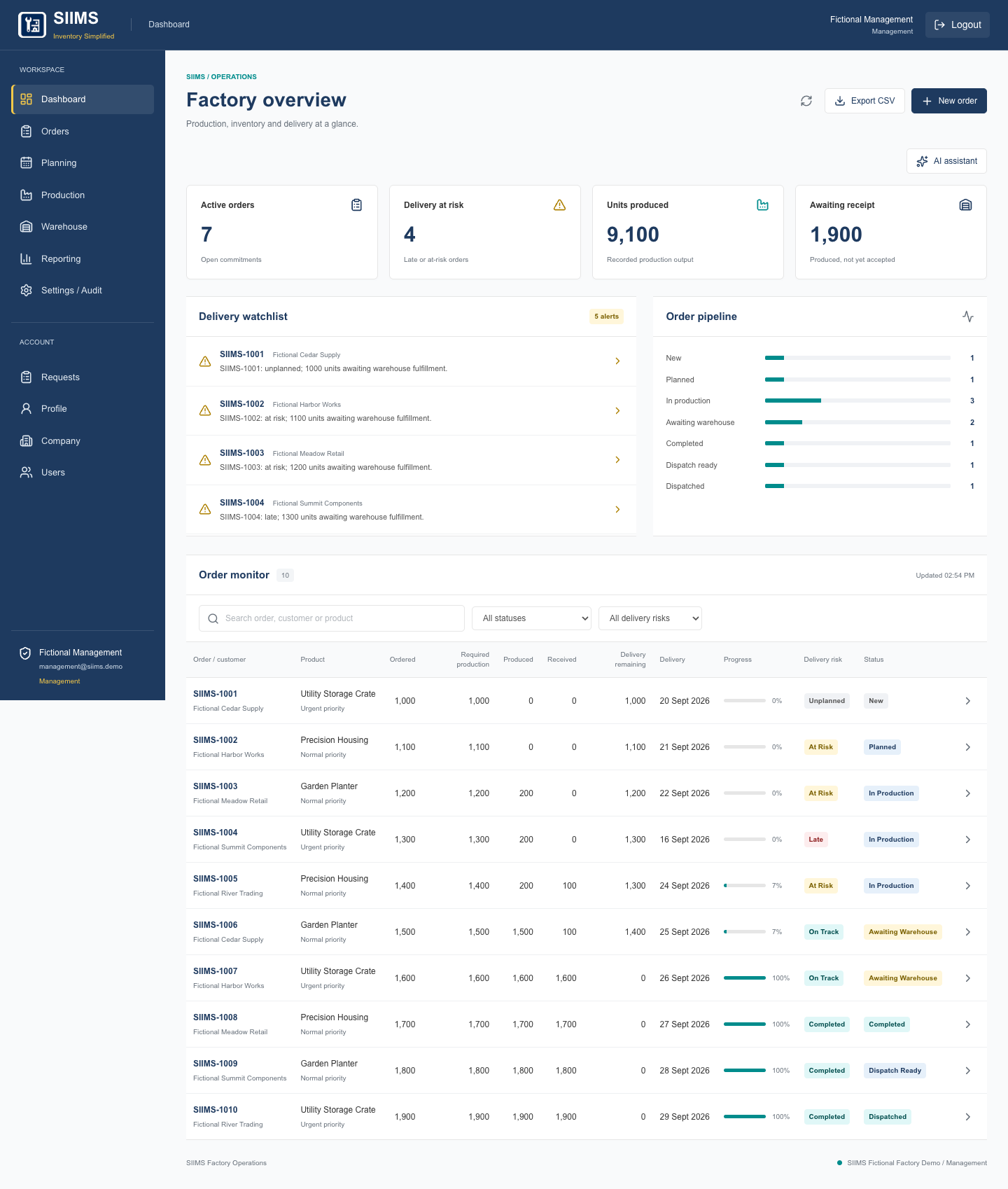
Factory dashboardA shared view of order progress and delivery attention.
02 / FEATURES
What the application includes
01
Dashboard
See the factory position at a glance.
Active orders, produced units, and pending warehouse receipts.
Delivery-risk indicators and a watchlist of orders needing attention.
Order pipeline and progress across the operational workflow.
02
Orders
Keep customer requirements and delivery commitments together.
Create and edit orders with products, quantities, due dates, urgency, and notes.
Search orders and filter by status or delivery risk.
Open order details, review progress, and export records as CSV.
03
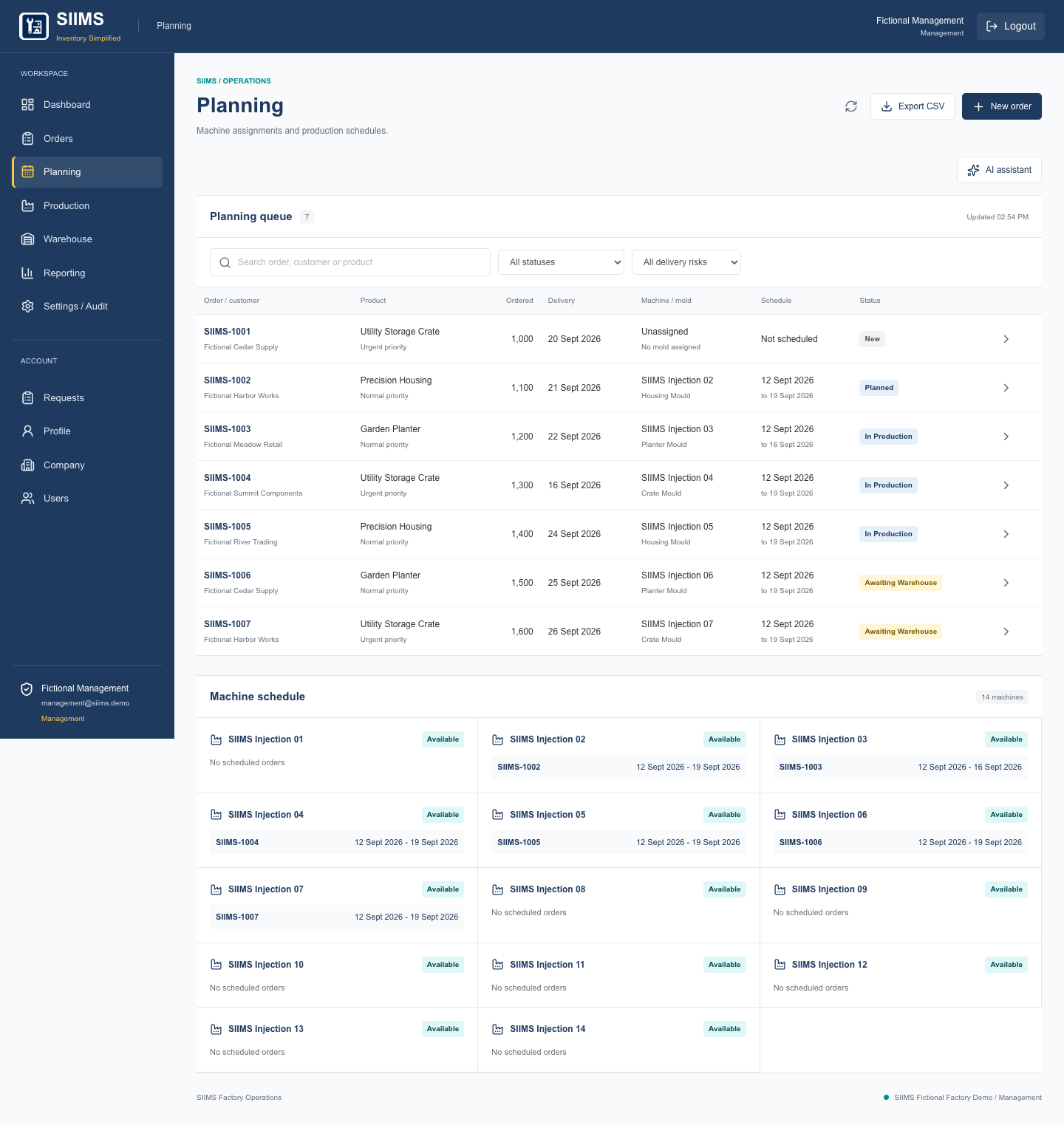
Production planning
Assign work to machines and compatible molds.
Choose machines, molds, dates, and priorities for each order.
Check raw-material availability before planning work.
View the machine schedule; conflicting assignments and invalid dates are rejected.
04
Production tracking
Record what the team actually produces.
Log partial or daily output with machine, time, staff, and notes.
Track produced quantities, remaining work, and production variance.
Keep production entries connected to the original customer order.
05
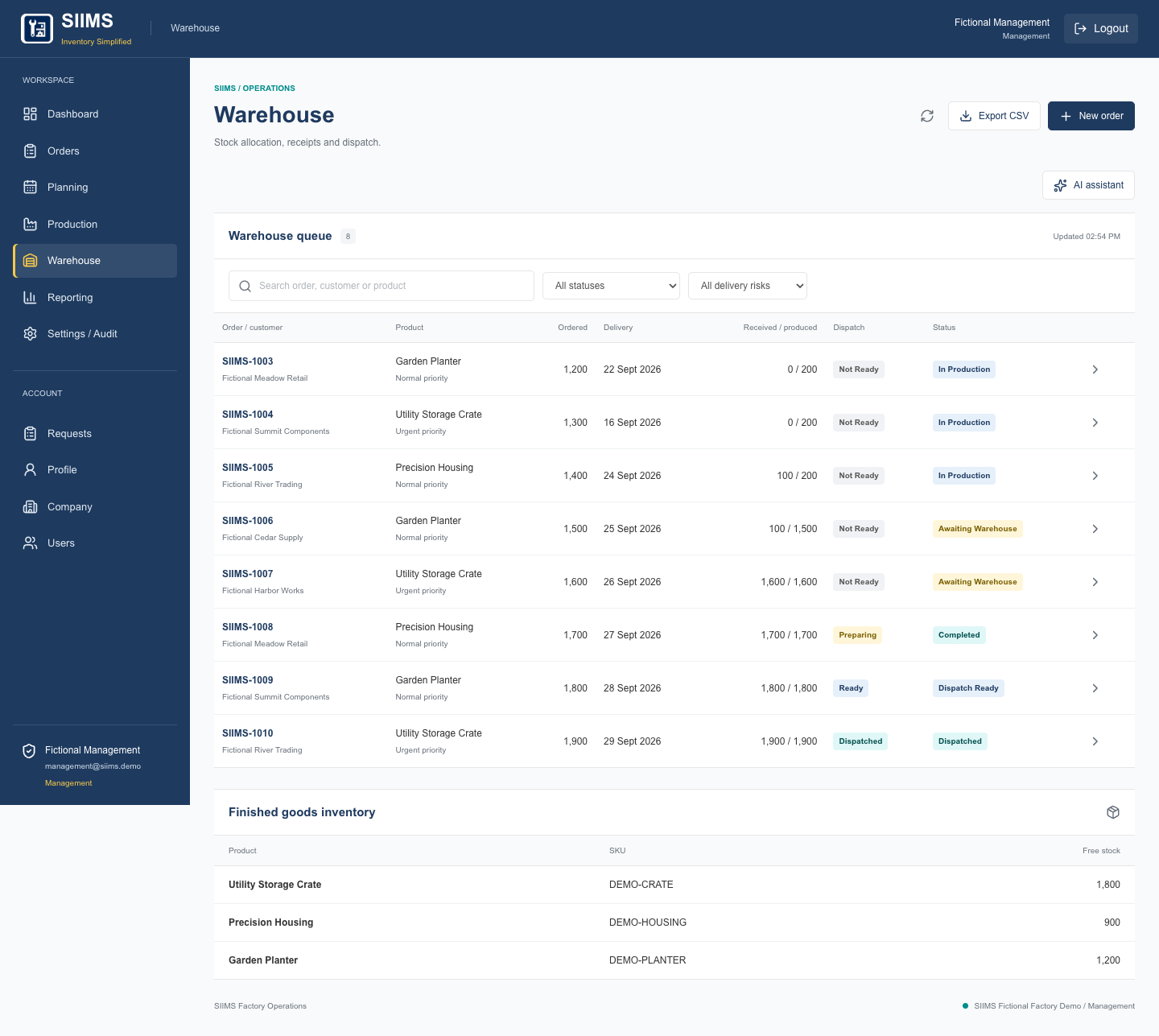
Warehouse & inventory
Separate available stock from newly produced goods.
Allocate available finished stock to an order.
Receive completed production in partial quantities.
Prevent receipts above recorded production and completion before fulfillment.
06
Dispatch
Track goods through the final handoff.
Move dispatch through preparing, ready, and dispatched stages.
Keep dispatch status connected to order fulfillment.
Give administration and warehouse teams access to dispatch actions.
07
Reporting & activity
Review progress without rebuilding spreadsheets.
Compare produced, received, and remaining quantities by order.
Review order status, delivery risk, and operational activity.
Export operational records as CSV.
08
Workspace & team management
Control who can do what.
Manage company details and staff access from the owner account.
Invite staff, assign roles, and remove workspace access.
Edit personal profiles and passwords; password changes revoke existing sessions.
09
Settings & inquiries
Manage the workspace and its public requests.
Configure delivery-risk thresholds and inspect service health.
Review persisted public inquiries and mark them new, contacted, or closed.
Inspect email-delivery status and retry failed messages as the workspace owner.
Production planningMachine assignments, compatible molds, and planned dates.Warehouse operationsStock allocation and production receipts tied to customer orders.
03 / AI & AUTOMATION
Ask questions about current factory data
The AI assistant reads the current operational snapshot and answers questions about orders, stock, machines, plans, and delivery exposure. Referenced order numbers link back to the order details.
Example questions
Which orders need attention before their delivery date?
What is still outstanding for this order?
Which machines are assigned to the current production plans?
The assistant is read-only: it does not change orders, execute database commands, or send emails. Delivery-risk indicators use configured rules, rather than AI predictions.
Workflow automation & email
Quantity checks and schedule-conflict validation protect the operational workflow.
Staff invitations and password-reset links use expiring, single-use tokens.
Public contact requests are saved and queue customer acknowledgments and team notifications.
Failed email messages remain in a delivery queue for automatic retry and owner review.
Email workflows are implemented. External email delivery still requires verification of the sending domain.
04 / TEAM ACCESS
Separate responsibilities, shared visibility
Workspace members can view factory records. Their role determines which actions they can perform.
Management
All factory operations. The workspace owner also manages company details, staff, inquiries, and email delivery.
Administration
Create and edit orders, check availability, plan work, complete fulfilled orders, and manage dispatch.
Production
Record production output and view operational records.
Warehouse
Allocate stock, receive production, manage dispatch, and view operational records.
Authentication uses protected session cookies and hashed passwords. Removing a member revokes their workspace access; company and staff administration remain owner-only.
05 / DEMO
Try the application
Start with the Management account for the broadest factory view. The demo page lists all four role accounts so you can compare their workflows.